Enlisted
Publisher: Gaijin Network Ltd
Game Information
Lead your squads to victory!
You are a squad leader
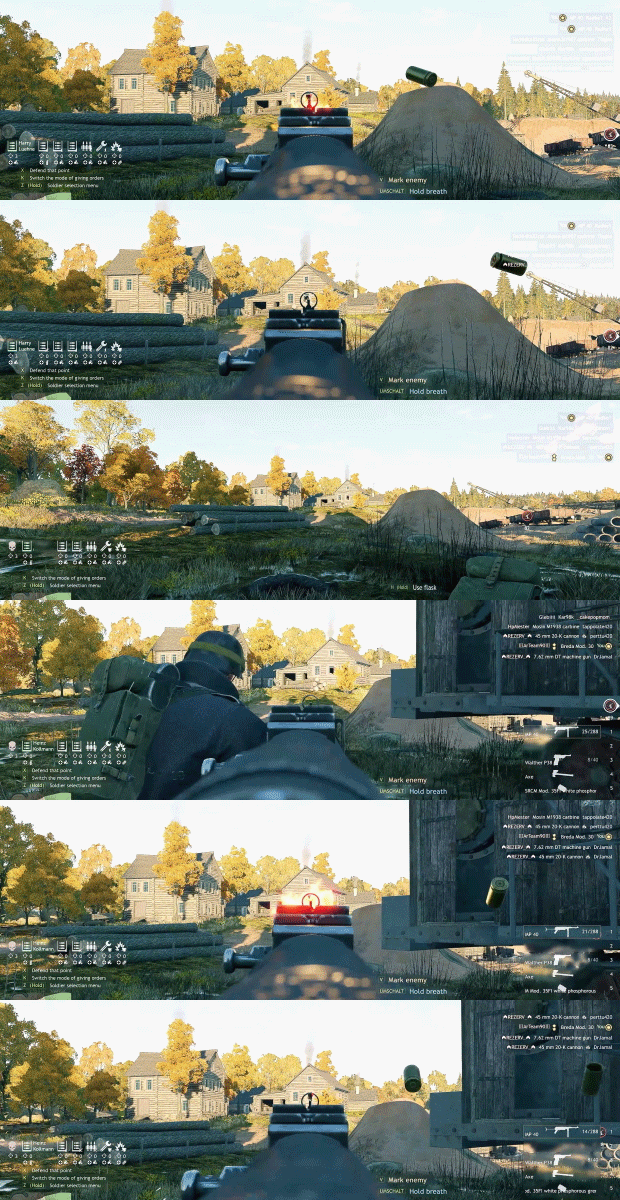
Each player commands his own squad of AI-controlled soldiers in battle. If you lose a soldier, you can immediately switch to another in your squad and continue the fight.
Thanks to this, battles in Enlisted feel truly massive and intense, similar to the real battlefields of the Second World War!
Iconic Fronts

The battles will take you to all corners of the world! Fight on several islands across the Pacific Ocean, in the villages of Normandy, on the streets of Berlin, on the snowy fields of Moscow, in the heart of Stalingrad or even in the sands of Tunisia!
The game features four countries participating in the war: USA, USSR, Germany and Japan. Choose just one or all of them and build your own army to your liking from the myriad of squads with different specialties. Based on your choices, you’ll end up on different battlefields, each with its own weapons, vehicles and matching uniforms.
Combined arms

Not just infantry, but also 350 of the most famous and diverse military equipment is at your disposal: tanks, armored cars, motorcycles and aircraft, both fighters and bombers, are available for your army.
At the same time, tankers and pilots are fully trained soldiers. Was your vehicle damaged? Leave it behind and join the fight on foot, continuing the fight as an infantry squad!
Tools of war
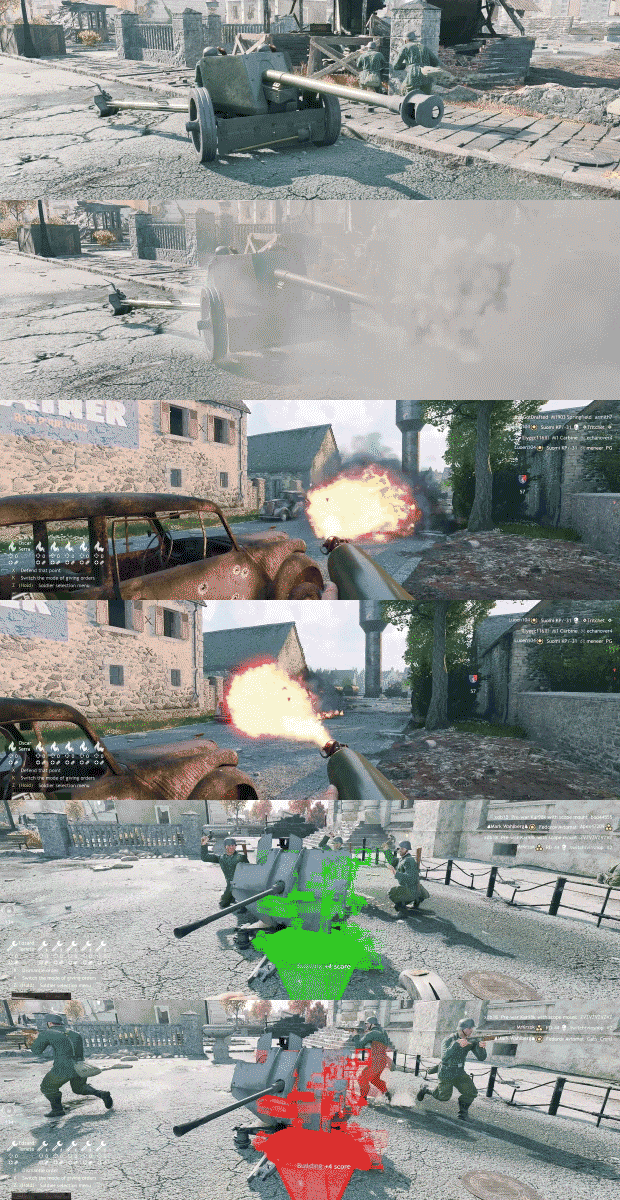
16 different soldier classes, each with unique perks and specialized weapons, including not only classic small arms but also heavy weapons: anti-tank guns, heavy machine guns, anti-aircraft guns, rocket launchers, flamethrowers, rifle grenade launchers and many more, so you can adapt to any situation and overcome every challenge.
These unique mechanics allow you to flank the enemy, drop your paratroopers behind enemy lines, build fortifications and gun emplacements, and use dozens of different tactics to push toward the mission objectives.
Map and mission editor
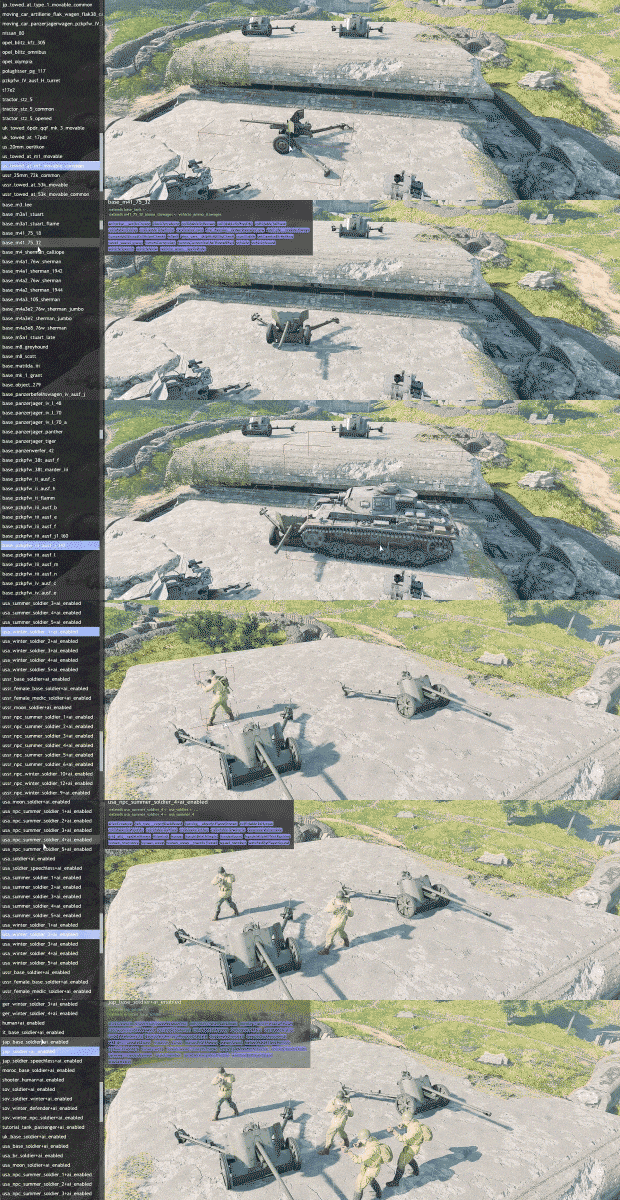
Each player has access to developer tools to create custom missions that can be launched on the public server!
Hundreds of missions are already available on our dedicated portal - from detailed recreations of historical battles, to battles on the surface of the Moon in low gravity with energy weapons. You are limited only by your imagination!
Mac Performance Stats
Experience Reports
2
Play Methods
Average Rating
Experience Reports

PLAYWINDOWSGAMES
ONMAC
*Affiliate link. Supports this site & Mac gaming through CodeWeavers' contributions to Wine.

CrossOver
v26.0
- Graphics:
- ULTRA
- FPS:
- 60
- Resolution:
- 1920x1200
- Machine:
- MacBook Pro
- Chip:
- M3 PRO
- Cores:
- 12 CPU, 18 GPU
- RAM:
- 18 GB
Review Note:
Pros: Game will launch and load to menu.
Cons: BattleEye Anti-Cheat will prevent you from staying in multiplayer matches as it will not run properly in Crossover.
Side-note: It does run on Proton on Linux, so there may be some service hook that's missing for BattleEye that's required or Wine Prefix needs to be adjusted.

Parallels
v26- Graphics:
- ULTRA
- FPS:
- 60
- Resolution:
- 1920x1200
- Machine:
- MacBook Pro
- Chip:
- M3 PRO
- Cores:
- 12 CPU, 18 GPU
- RAM:
- 18 GB
Review Note:
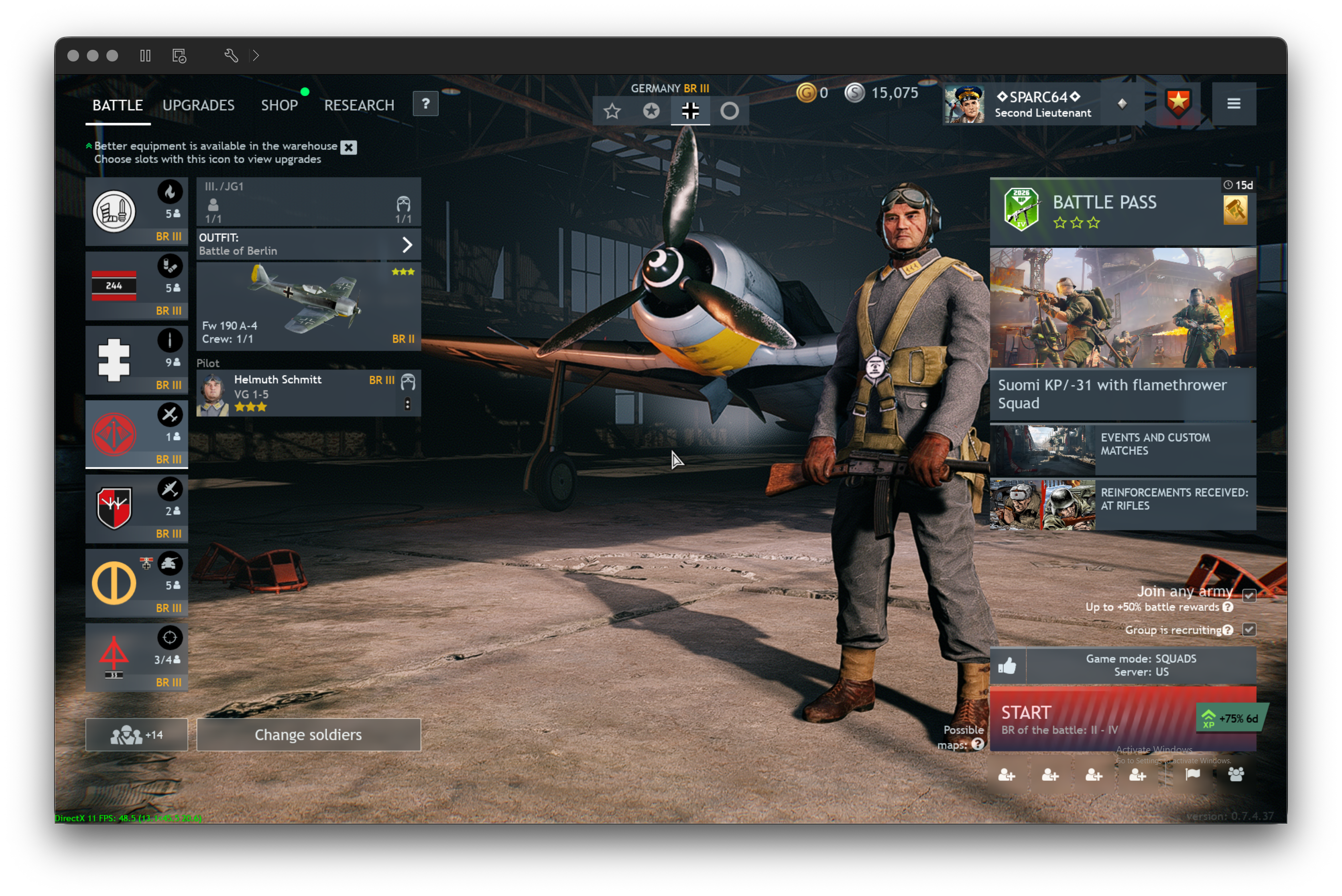
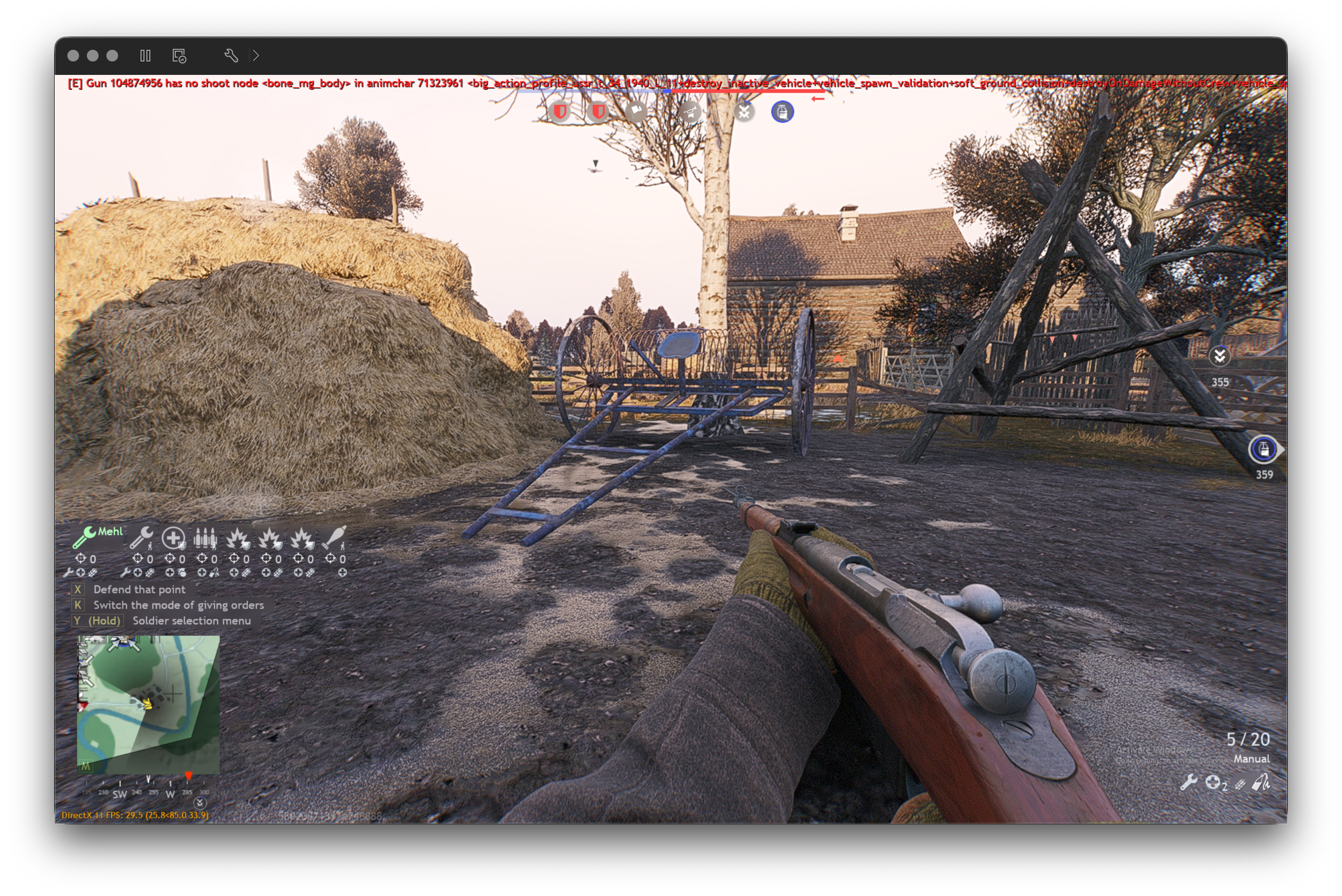
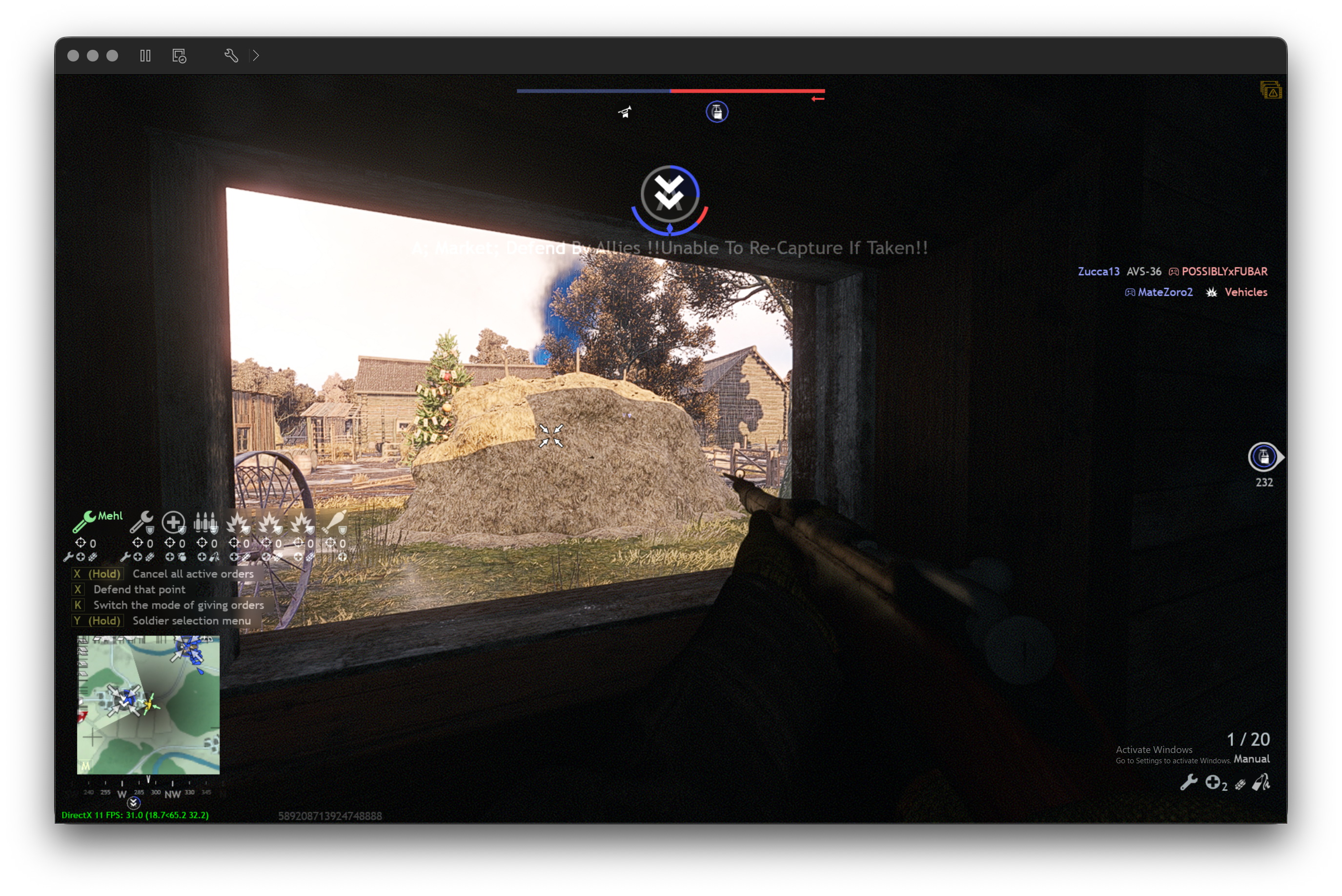
This was performed on both Parallels 26 and VMware Fusion Pro 25H2u1. Screenshots were taken in VMWare Fusion Pro 25H2u1.
## General Notes:
You will need to adjust settings in Parallels or VMWare to avoid having Windows force the Retina display settings. Recommended is 1920x1200 to keep aspect ratio and still look okay. The game plays best if Windows installation is on internal drive and an external SSD/HDD game drive is mounted within the VM (USB Passthrough, format as NTFS). This splits the I/O and memory overhead. With the 18GB model you will need to make sure you are giving enough memory, otherwise a lot of memory swapping will occur.
## Performance:
The game itself runs and will take a minute to fully cache system for PRISM. You will experience an intermediate FPS drop because of the nature of the JIT compilation and Rosetta 2 translation. However, the game is still playable.
## BattleEye Anti-cheat:
For a while this was the biggest limitation, but on Windows for ARM64 it is allowed. I have been able to play matches with little to no issues.
There is a quirk where sometimes it will fail to launch the BattleEye AC service, but usually a restart of the VM or a relaunch will fix that issue. I am not 100% sure of the condition that causes that service to fail.
## MacOS (Host) Tweaks:
1. Disable Spotlight Search for VM directory so it doesn't get indexed.
System Settings -> Siri & Spotlight -> Spotlight Privacy
Add: ~/Virtual Machines.localized
2. Reduce transparency and motion effects (Terminal) (Tahoe Liquid Glass):
defaults write com.apple.universalaccess reduceMotion -bool true
defaults write com.apple.universalaccess reduceTransparency -bool true
killall Dock
3. Purge MacOS file cache to give the VM a cleaner memory environment:
sudo purge
## VMware VMX File Tweaks:
1. Disable Side-Channel Mitigations (Spectre/Meltdown):
Add to the .vmx:
ulm.disableMitigations = "TRUE"
2. Memory Reservation (Prevent host from reclaiming VM RAM):
Add to .vmx:
sched.mem.min = "8192"
sched.mem.min = "8192"
## Windows VM ARM64 Guest Tweaks:
1. Power Plan: High Performance
Run PowerShell as Administrator and run the following:
powercfg /setactive 8c5e7fda-e8bf-4a96-9a85-a6e23a8c635c
2. Disable SysMain (Superfetch):
Sysmain causes random disk I/O spikes against the VMDK as it tries to pre-load apps. Not beneficial in a VM environment.
Win + R and run 'services.msc' (without single quotes)
Double-click "SysMain"
Set Startup Type to Disabled
Stop the service.
3. Disable Windows Search Indexing:
Manual search will still work, just not against an actively updated index.
Win + R and run 'services.msc' (without single quotes)
Double-click "Windows Search"
Set Startup Type to Disabled
Stop the service
4. Disable the Xbox Game Bar and Game DVR:
This adds overhead in the VM.
Run PowerShell as Administrator and run the following:
Get-AppxPackage Microsoft.XboxGamingOverlay | Remove-AppxPackage
5. Disable Transparency and Animations:
Reduces virtual GPU overhead.
Settings -> Accessibility -> Visual Effects -> Disable All
## Enlisted Game INI Video Settings:
The config file is usually located under:
C:\Users\<username>\Documents\Enlisted\settings.blk
Here is what I use for my Macbook Pro M3 Pro 18GB RAM 512GB SSD:
video{
mode:t="borderless"
monitor:t="\\.\DISPLAY1"
antialiasing_mode:t="tsr"
driver:t="dx11"
fsr:t="ultraquality"
resolution:t="1920x1200"
vsync:b=yes
fpsLimit:i=60
}
## Steam Launch Options:
1. Right-click Enlisted -> Properties -> Launch Options
2. Add -dx11
NOTE: DX12 translation causes a lot of overhead on ARM.